

Connecting Instagram
Automate and engage with your Instagram audience.
Integrating your Instagram account with AiChat allows you to:
- Monitor and respond to Instagram Direct Messages (DMs in a unified inbox)
- Provide 24/7 automated responses using chatbot flows
- Engage users through comment-to-DM automation
- Support live chat handoff to agents
- Track Instagram conversation performance
How to Connect Your Facebook Page to the Chatbot
Requirements:
Before connecting your Instagram account, ensure that:
- Use a Professional Account
- Your Instagram account must be a Business or Creator account. Personal accounts are not supported.
- Learn how to set up a professional account.
- Enable Messaging Access
- Ensure your Instagram messaging settings allow access to messages for connected apps.
- Learn how to manage access to Instagram messages across apps.
- Permissions
You must be an administrator or have full access to the Instagram account you wish to connect.
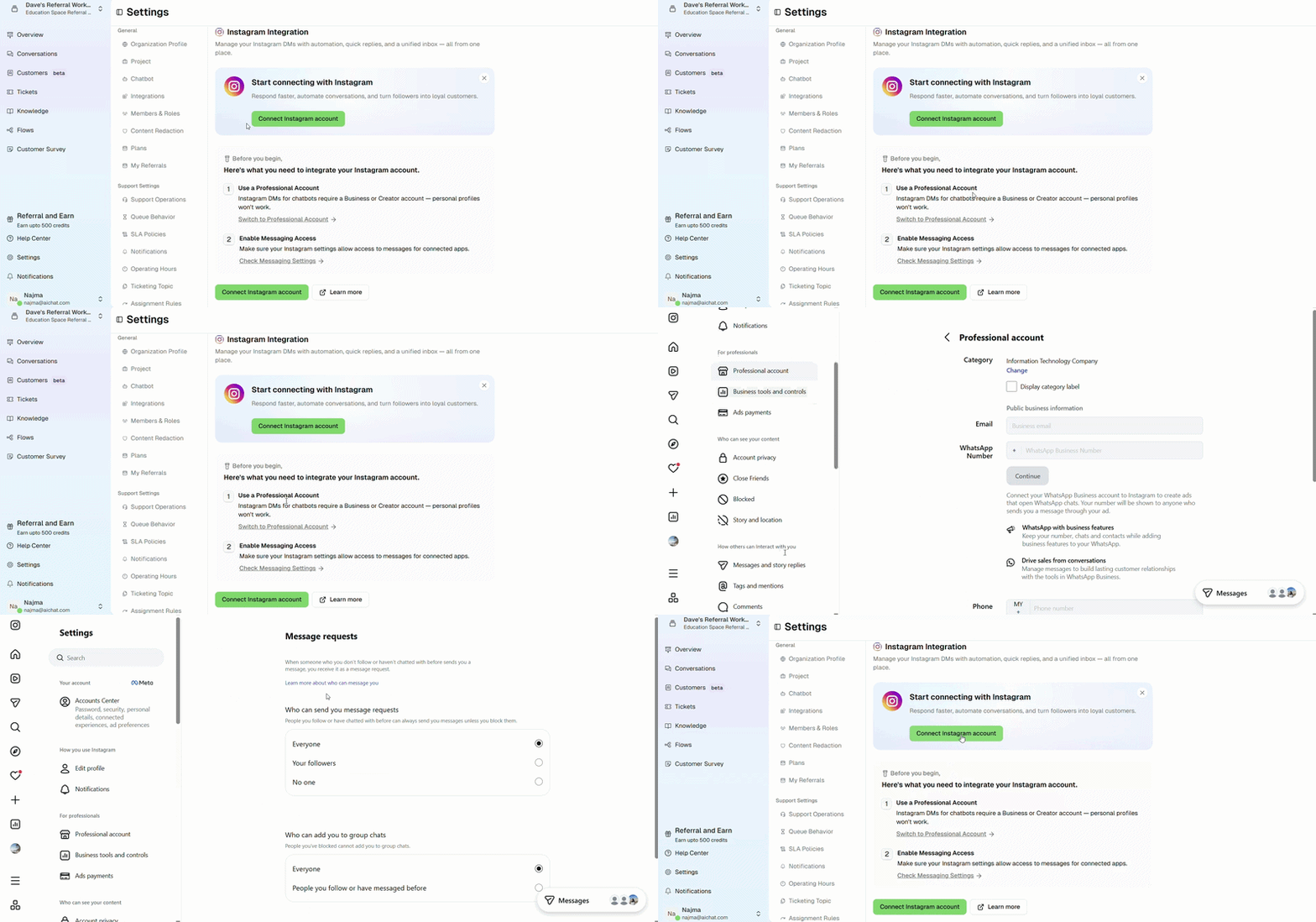
Step 1: Integrate Instagram Account in AiChat
- In your AiChat dashboard, go to Settings → Channels → Instagram.
- Click Connect Account to start the integration process.
- Sign in to your Instagram account through Facebook (Meta) when prompted.
- Choose the Instagram account (linked to your Facebook Page) you want to connect.
- After successful authorization, you will be redirected back to AiChat with the Instagram account connected.
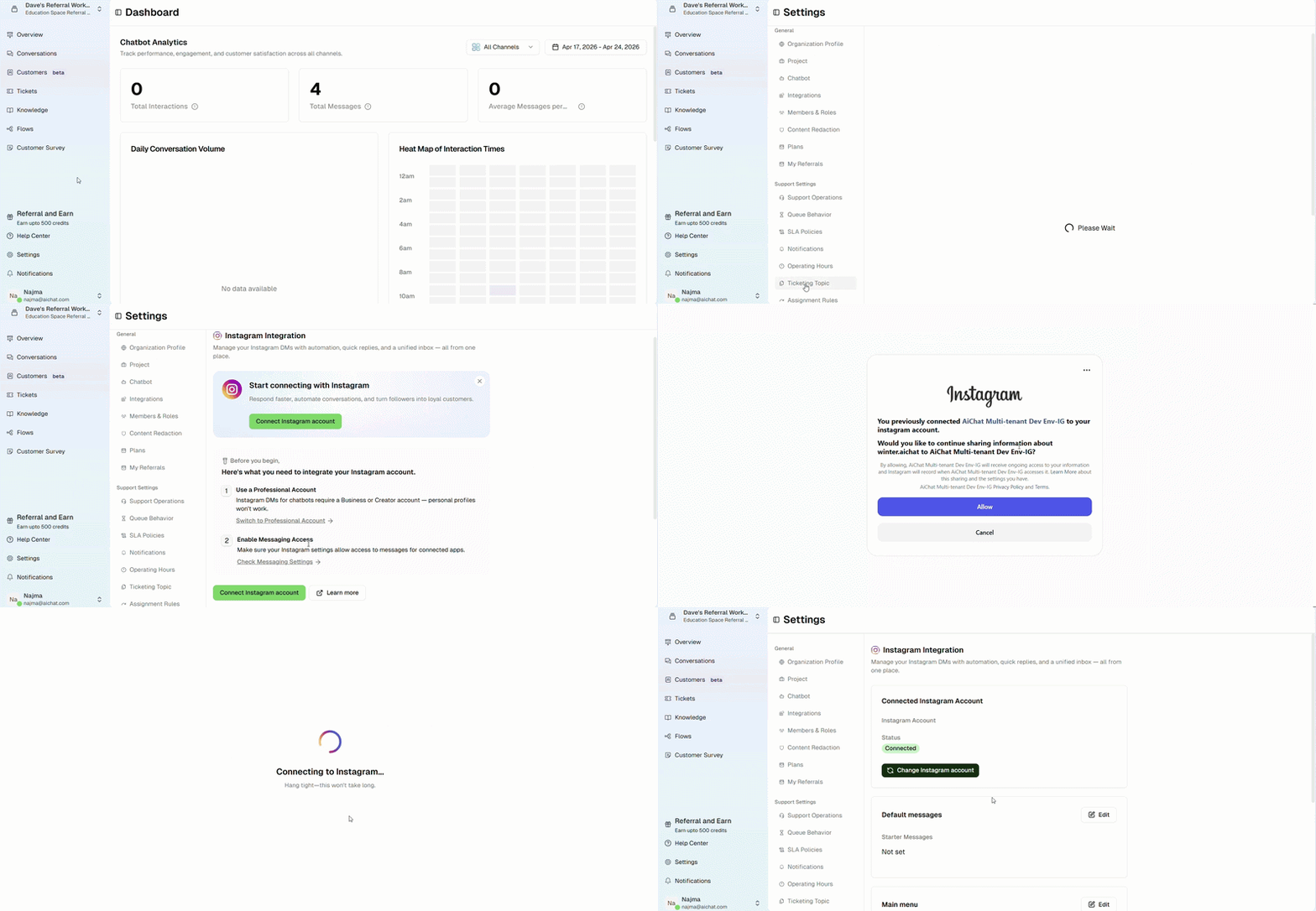
Step 2: Managing Your Instagram Integration in AiChat
After connecting, you can manage your Instagram account within AiChat.
Default Starter Messages
Displays quick reply options that appear when users start a new conversation.
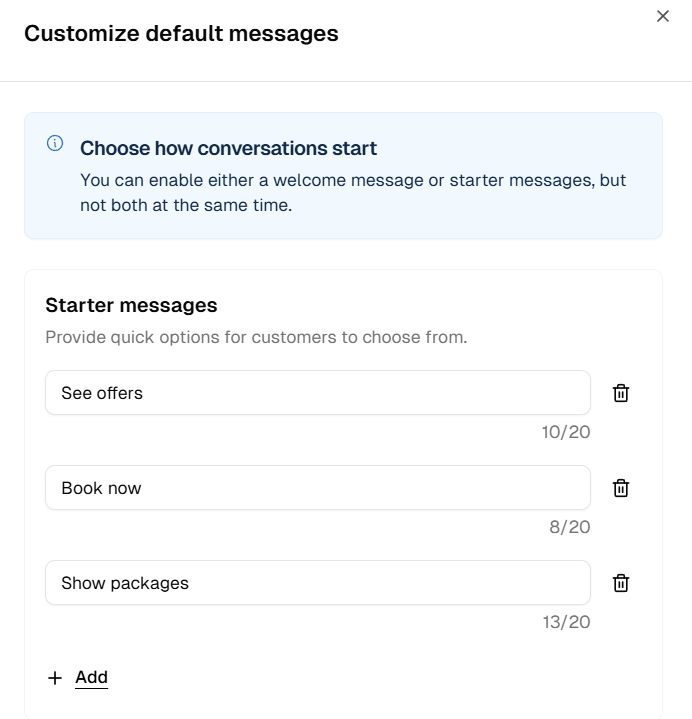
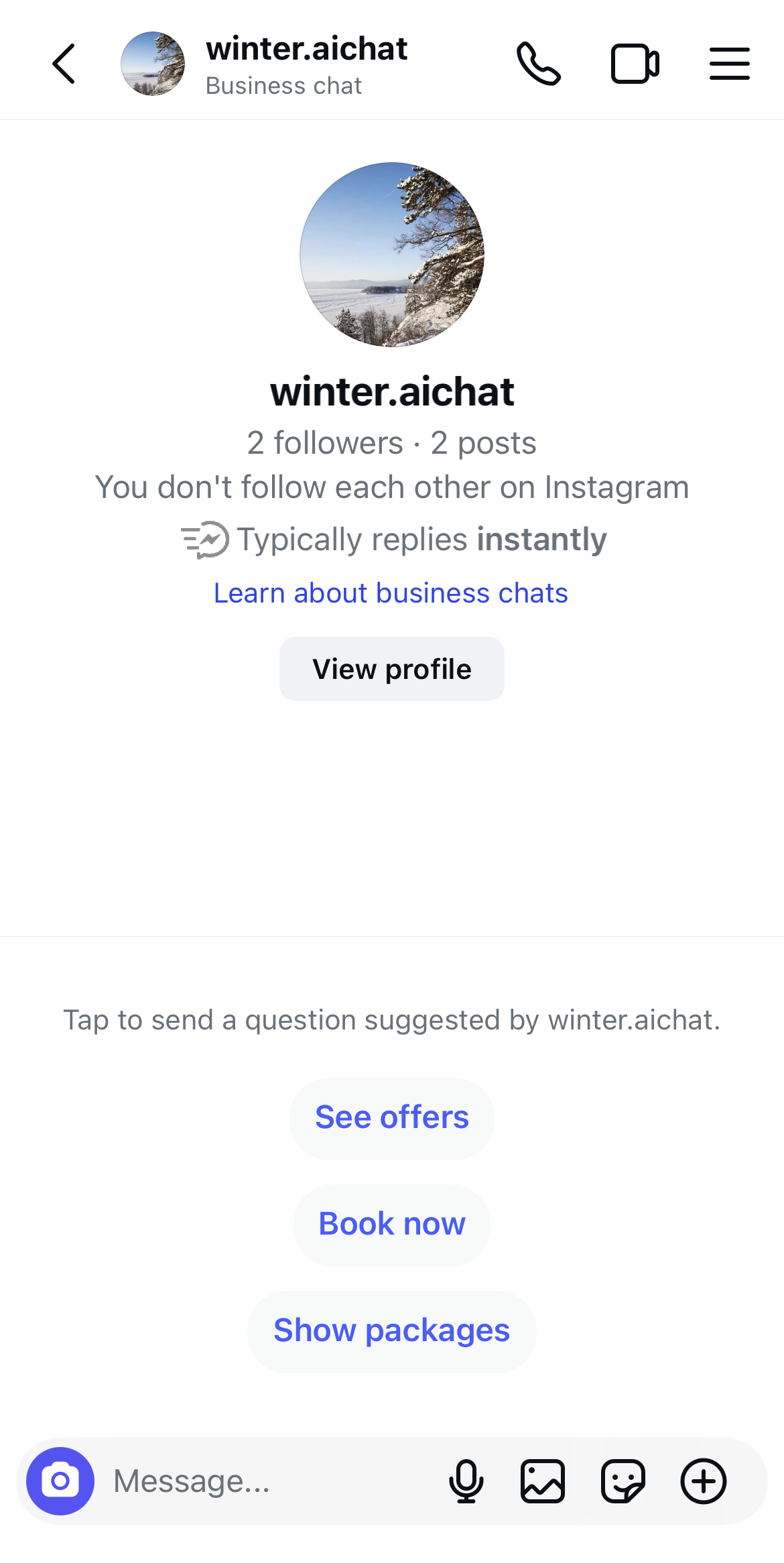
- You can add multiple starter messages for users to choose from
- Each message is limited to 20 characters
- Only one option can be enabled (Starter Messages or Welcome Message)
Main Menu
Allows you to configure menu items accessible during conversations.
- You can add menu items with different action types.
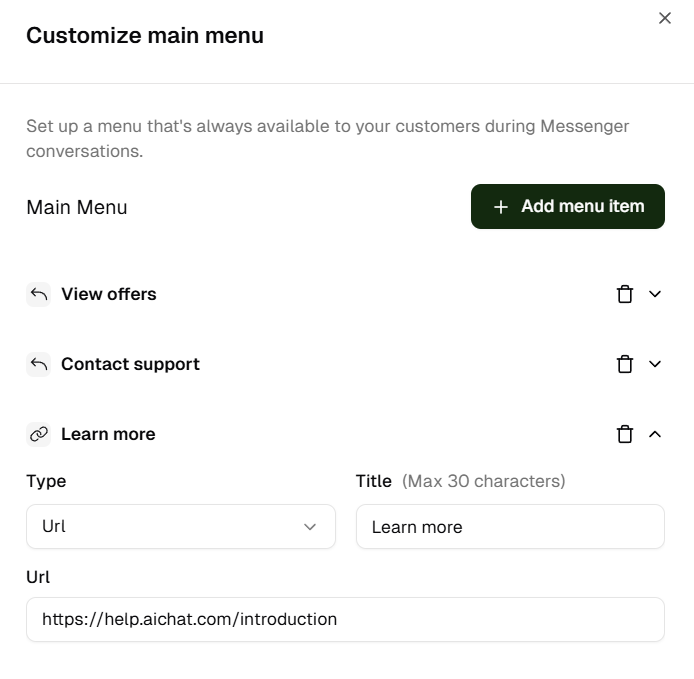
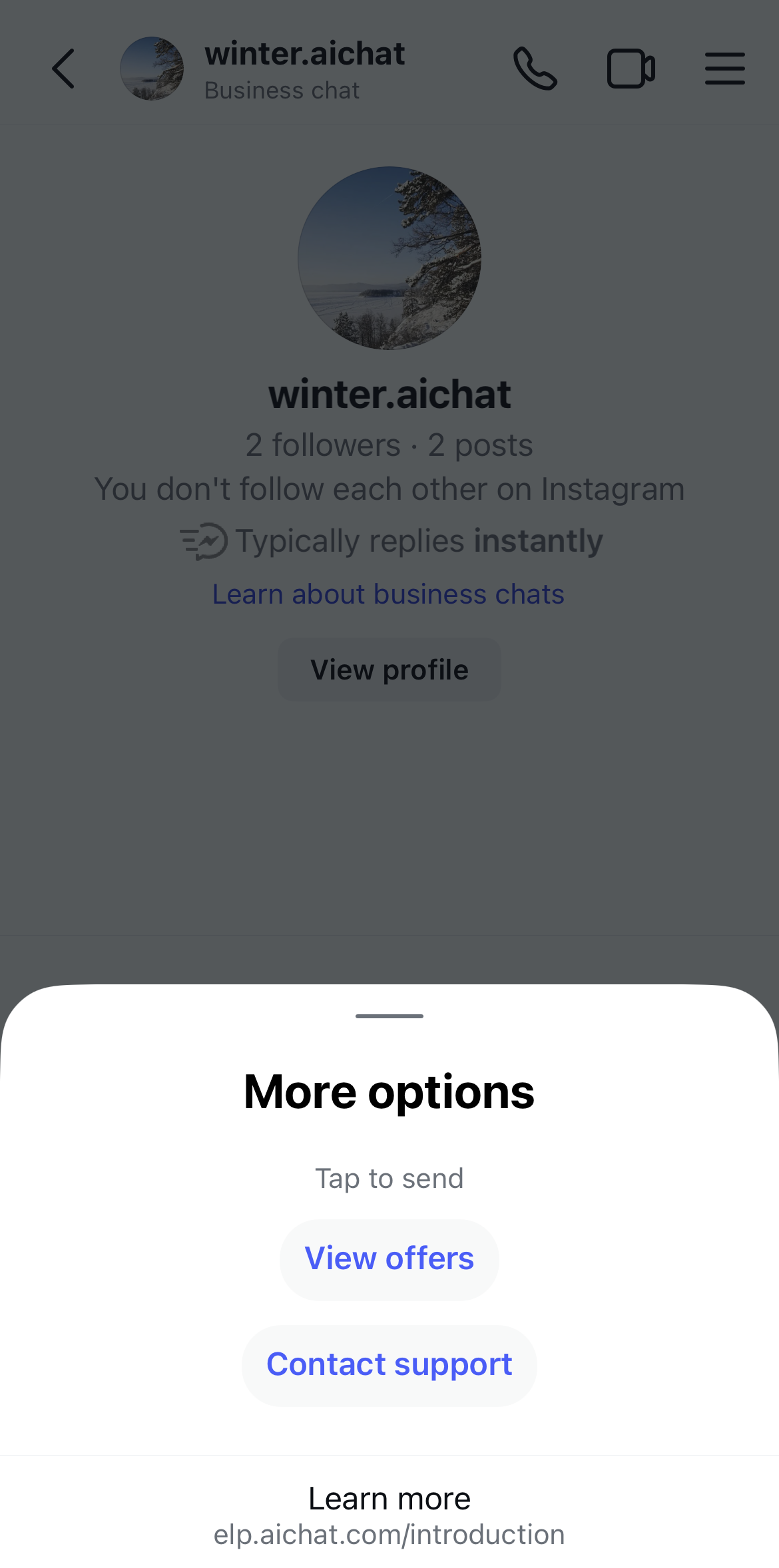
Menu Item Title: Displays the label of the menu item (up to 30 characters)
Quick Reply Type: When selected, the message is sent to the chatbot for processing like a normal user message
URL Type: Opens a link in Instagram’s in-app browser
Disconnect Instagram Integration
You can disconnect your Instagram account from our AiChat platform at anytime.
- Go to Settings → Channels → Instagram
- Scroll to Disable Instagram Integration
- Click Disable Integration
Once disconnected:
- The chatbot will stop sending and receiving messages
- Automations and workflows will pause